Classic PC Theme
AnySoftKeyboardLibraries & Demo
5.05.00 Reviews
- Version
- 5.2.959
- Installs
- 10.00K
- Age Rating
- Everyone
Screenshots
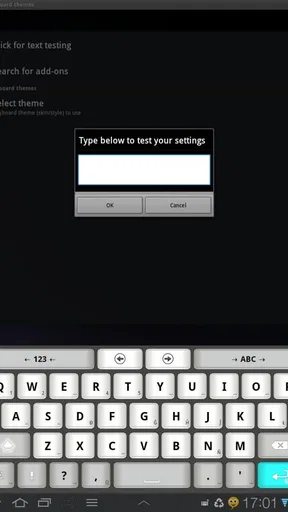
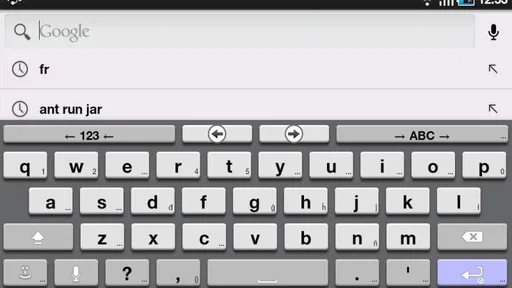
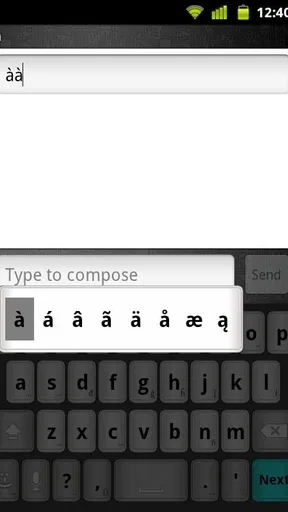
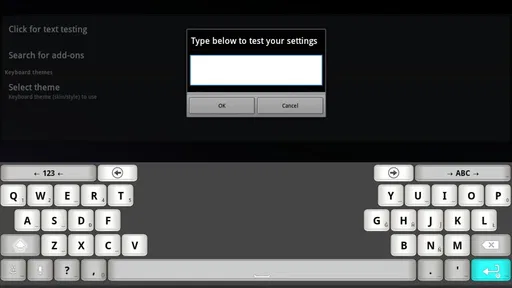
Our Review of Classic PC Theme
 Analysis by Appyee
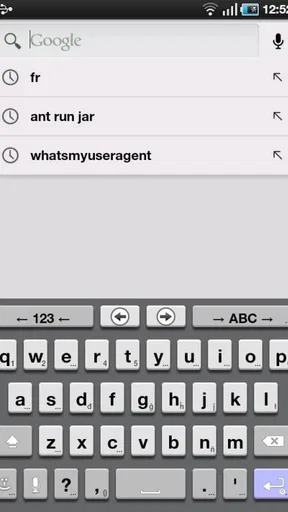
Classic PC Theme is a small visual add-on for AnySoftKeyboard that aims to make typing feel more like using an old desktop keyboard. I tried it with that expectation in mind, and the result is pleasantly focused: it does not attempt to replace the keyboard, add a new language, or turn typing into a feature-heavy experience. Its job is simply to change the appearance of the keys, and it stays close to that purpose.
That narrow approach is both its appeal and its main limitation. If you already use AnySoftKeyboard and prefer a traditional computer-inspired look, this is an easy way to make the keyboard feel less modern and more familiar. If you want a complete keyboard app, extensive customization, predictive tools, stickers, or a theme that works independently, this is not the right download. It belongs to the Libraries & Demo section, is free to use, and is suitable for Everyone.
A focused theme for AnySoftKeyboard users
The developer, AnySoftKeyboard, presents this app as a classic PC theme rather than a standalone typing tool. That distinction matters when deciding whether it will help you. After installation, the important step is not opening the theme and expecting a separate keyboard screen. Instead, you need AnySoftKeyboard already installed and then select the theme through that keyboard's settings or appearance controls.
That setup can briefly confuse new users. The theme itself is not meant to become your keyboard from the regular Android input-method list. It supplies the visual style, while AnySoftKeyboard continues to handle the actual typing. Once that relationship is clear, the app is straightforward. I would describe it as a skin or appearance package, not as an alternative to the keyboard you use every day.
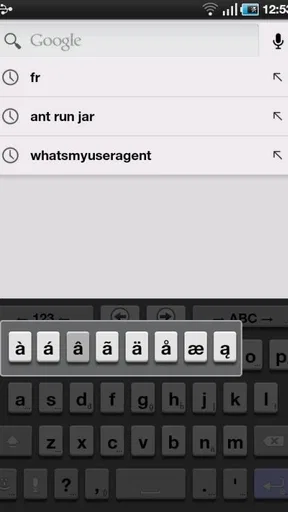
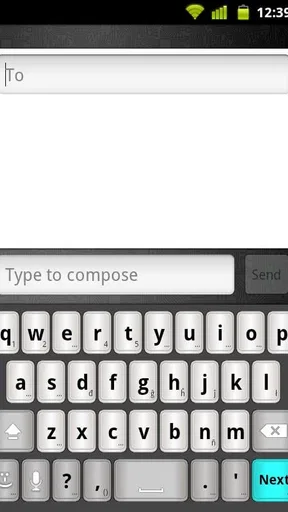
The visual idea is deliberately old-school. The keys are designed to suggest a classic personal-computer keyboard, which can make the layout feel more recognizable to people who spend a lot of time typing on a physical keyboard. I found that the style works best when you want a practical, restrained appearance rather than a colorful or decorative theme.
There is also a useful psychological benefit to this kind of design. A familiar keyboard appearance can make a phone feel less like a touch-only device and more like a compact writing tool. That will not improve typing speed by itself, but it can make the keyboard feel more comfortable for users who dislike glossy, oversized, or heavily stylized mobile themes.
What the current release actually delivers
The current version is 5.2.959, and the app supports devices running Android 6.0 or later. In practical terms, that makes it relevant to a broad range of Android phones and tablets, including older hardware that may not run the newest keyboard applications comfortably. I appreciate that the theme does not demand a recent operating system simply to provide a visual change.
Its current state is best understood as mature and specialized. The app has been available since March 4, 2012, so it is not a newly introduced design experiment. It has accumulated an average rating of 5.0 from around 209 ratings, with over 10K installs. Those figures suggest that the people who find it are generally satisfied, but they should also be read in context: this is a niche theme for users of a particular keyboard, not a mass-market keyboard replacement.
The release history is especially interesting because the product has stayed centered on the same basic idea. Rather than chasing every trend in mobile input, it continues to serve people who want a classic PC-inspired appearance inside AnySoftKeyboard. That consistency is reassuring for an existing user who likes the look and wants a simple theme that does not constantly change its visual identity.
At the same time, I would not interpret the version number as evidence of a large feature set. The number tells me that the package has gone through ongoing maintenance, but the experience remains intentionally modest. The meaningful change for a user is likely compatibility and continued integration with AnySoftKeyboard, not a dramatic expansion into new keyboard functions.
How it affects everyday typing
Imagine that you use an Android phone to answer work messages during a commute. You already know AnySoftKeyboard, but its default appearance feels too soft or too modern. With this theme selected, the keyboard takes on a more familiar desktop-like character. When you move between the phone and a physical keyboard during the day, the visual transition is less jarring.
Another realistic use is writing longer notes on a tablet. A classic key design can make the on-screen keyboard feel more like a compact computer input area, especially when the tablet is placed on a desk. It will not provide the tactile feedback of real keys, and it will not make the display larger, but the visual cues can help you settle into a more deliberate typing rhythm.
I also see value for people who prefer understated interfaces. Many keyboard themes use bright colors, gradients, oversized symbols, or novelty graphics. This one is a better match for someone who wants the keyboard to look functional and familiar. It can be especially appealing if you associate older computer keyboards with clear key boundaries and a straightforward layout.
One non-obvious advantage is that a theme can make it easier to notice whether you are using the keyboard you intended to use. Android users sometimes switch between several input methods, and a distinct appearance provides a quick visual signal. If AnySoftKeyboard has the classic PC look while another keyboard has a different design, you can identify the active keyboard without opening settings.
There is a trade-off, though. A theme that emphasizes a traditional computer aesthetic may feel less comfortable on a small phone than on a tablet. On a compact display, key borders and darker visual elements can make the keyboard look busier, depending on your screen and system settings. I would test it during normal one-handed typing before deciding that the style works everywhere.
Installation, selection, and practical setup
The most important setup tip is to treat the theme as a companion to AnySoftKeyboard. Install the theme, make sure the main keyboard is enabled, and then look for the appearance or theme selection area inside AnySoftKeyboard. If the theme does not appear immediately, closing and reopening the keyboard settings is a sensible first step before assuming the installation failed.
This workflow is different from installing a complete keyboard such as Gboard or another standalone input app. Those products usually guide you through enabling the keyboard and choosing it as the default. Classic PC Theme has a smaller role, so the user must already understand that a base keyboard is required. For experienced AnySoftKeyboard users, that is no problem; for newcomers, it is the one part most likely to cause uncertainty.
After selecting it, I recommend typing in several places rather than judging it from the settings screen alone. Try a short message, a longer note, and a form with numbers or punctuation. The visual impression can change depending on the keyboard layout, screen size, and whether the phone is held vertically or horizontally. This quick test also confirms that the theme is being applied to the layouts you actually use.
If you change languages or layouts inside AnySoftKeyboard, check each one separately. A theme can look convincing on the main alphabetic layout while feeling less natural on a symbol or number screen. This is a useful workflow for multilingual users: select the theme first, then move through your regular layouts and decide whether the classic appearance remains readable in each context.
Because the app is free, experimenting is low-risk. You can compare it with the default AnySoftKeyboard appearance and switch back if the classic style does not suit your display. I would avoid changing several keyboard settings at once, though. Keeping the layout and behavior unchanged while testing the theme makes it easier to tell whether your reaction is about the appearance or about a separate keyboard preference.
Where it compares well with ordinary alternatives
The usual alternative is simply to keep AnySoftKeyboard's default appearance. That option is better if you want the most familiar setup for your current configuration or if you do not care about a retro computer look. The default also avoids adding another theme package to manage. Classic PC Theme becomes worthwhile when the default feels visually wrong rather than functionally inadequate.
Another alternative is choosing a more colorful or modern keyboard theme. Those can be more expressive and may feel friendlier on a phone used mainly for casual chats. This theme is stronger for work notes, technical writing, or anyone who prefers a sober interface. It does not compete on decoration; it competes on familiarity.
A standalone keyboard is a different comparison altogether. Gboard-style alternatives may offer broader integration, voice tools, search features, and a polished setup process. If those capabilities are central to your typing, switching to a theme will not address your needs. Classic PC Theme is only the better choice when you are happy with AnySoftKeyboard's input behavior and want to change its visual character.
There is also the option of using a physical Bluetooth keyboard. That remains the better solution for long documents, precise editing, and genuine tactile feedback. This theme cannot reproduce the spacing, travel, or certainty of physical keys. Its value is for moments when you want a phone or tablet to look more like a computer without carrying additional hardware.
A further trade-off concerns accessibility and readability. Some users may find clearly separated, traditional-looking keys easier to distinguish, while others may prefer larger, higher-contrast, or more modern designs. I would not assume that “classic” automatically means easier to see. Your screen brightness, display size, eyesight, and preferred text scale all affect the result.
Limitations that matter before installing
The biggest limitation is dependency. Without AnySoftKeyboard, this theme has no independent typing function. That means it is not useful to someone who wants to replace the phone's existing keyboard in one installation. You need to be comfortable with a two-part setup: the keyboard provides behavior, and this package provides the appearance.
It also does not transform the way you type. Do not install it expecting better autocorrection, a different prediction engine, new gestures, or extra language support. Those decisions belong to AnySoftKeyboard and its selected layouts. The theme can change how the keyboard looks, but it cannot fix a typing issue caused by the underlying keyboard configuration.
Its narrow design may also feel dated to users who expect modern personalization. If you want custom colors, animated backgrounds, emoji-focused controls, or a highly adjustable appearance, you may quickly run into the boundaries of this package. The restraint that makes it appealing to classic-PC fans can feel like a lack of options to everyone else.
There is a maintenance consideration as well. Since the theme works alongside another application, the quality of the experience depends on that relationship continuing to function on your device. Keeping AnySoftKeyboard updated when appropriate and checking the theme after major system changes is sensible. If you rely on a keyboard for work, test the combination after updates rather than assuming every visual package will behave identically forever.
Privacy-conscious users may also appreciate the limited scope, but they should keep their expectations precise. A visual theme is not the same thing as a privacy-focused keyboard. The typing behavior still comes from AnySoftKeyboard and the settings you choose there. Evaluate the main keyboard separately if data handling or input-method permissions are important to you.
Who should use it and who should skip it
I would recommend this app to an existing AnySoftKeyboard user who wants a quiet, recognizable, old-school appearance. It is a particularly good fit for tablet owners, people who type technical notes, and users who find modern keyboard themes visually distracting. It is also worth trying if you regularly move between a phone and a desktop computer and enjoy keeping a similar visual language across both.
It may suit someone setting up an older Android device, too. Since the minimum operating system is Android 6.0, the theme is not restricted to only the newest phones. A lightweight visual add-on can be a sensible way to personalize an older device without replacing its entire input setup.
I would skip it if you do not already use AnySoftKeyboard, if you want a complete keyboard app, or if your priority is advanced typing assistance. People who depend on voice input, extensive emoji tools, integrated search, or a very modern adaptive interface will probably be happier comparing full keyboard applications instead.
I would also skip it if you dislike retro styling. The classic PC idea is not a hidden detail; it defines the experience. Installing it in the hope that it will look like a contemporary minimalist keyboard is likely to lead to disappointment. The right question is not whether the theme is fashionable, but whether its older computer character makes typing feel more familiar to you.
What existing users should expect from its evolution
For someone who has used the theme for a long time, the current version should be viewed as a continuation rather than a reinvention. The version 5.2.959 release identifies the package's present state, while its long availability since 2012 shows that the concept has remained stable. That is good news if you value consistency: your preferred appearance is less likely to be replaced by an unrelated design direction.
The practical effect of that stability is modest but useful. Existing users can continue treating it as a dependable appearance choice inside AnySoftKeyboard instead of relearning a new interface. New users should approach it with the same expectation: a focused theme that complements a keyboard, not a growing ecosystem of independent features.
What I would watch over time is compatibility with new Android releases and changes in AnySoftKeyboard's theme system. A theme can remain visually appealing while still needing updates to stay selectable and correctly rendered. I would also pay attention to how it behaves across newer screen proportions, tablets, dark system settings, and alternate layouts. Those are the areas where an older visual package is most likely to show its age.
That does not mean the theme is obsolete. In fact, its limited ambition is part of why it remains easy to understand. It offers one clear choice for one clear audience. The important expectation is that future maintenance should preserve that relationship rather than promise a feature-rich keyboard experience that the app was never designed to provide.
My recommendation after using the theme
Classic PC Theme is a good small upgrade when the keyboard underneath already works for you. I like that it does not complicate the typing experience or pretend to be more than a visual companion. The free price makes it easy to test, and the Everyone age rating keeps the audience broad. Its 5.0 average from around 209 ratings and over 10K installs also show that it has found a satisfied niche, even though those numbers should not be compared directly with the reach of major standalone keyboards.
My final advice is simple: install it only after confirming that AnySoftKeyboard is the keyboard you want to keep using. Select the theme, test your main language and layout, then try it during a normal day of messaging and note-taking. If the old-school key design makes the screen feel clearer or more familiar, it is a worthwhile finishing touch. If you are looking for new typing capabilities, choose a full keyboard alternative instead.
For the right user, this is a pleasant example of a focused Android utility. It takes a familiar desktop-inspired idea and applies it without unnecessary extras. I would recommend it to friends who already enjoy AnySoftKeyboard and want their phone to feel a little more like a classic computer, while being honest that its usefulness ends at appearance. That narrow purpose is not a weakness when it matches what you want; it is simply the boundary you should understand before installing.
Verdict
Strengths of Classic PC Theme
- Brings a familiar Windows-style look to modern Android devices.
- Lightweight design keeps navigation fast on most phones.
- Offers nostalgic visual elements for longtime PC users.
- Simple interface makes customization easy to understand.
- Works well for users who prefer a desktop-inspired layout.
Limitations of Classic PC Theme
- May feel outdated compared with modern Android themes.
- Some features may depend on the device’s launcher support.
- Ads or in-app purchases may affect the overall experience.
- Not all icons and widgets may match the classic PC style.
- Can require extra permissions for certain customization options.
Similar Picks in This Category
View All
PGT: GFX, Launcher & Optimizer
Trilokia Inc.4.5

AusweisApp Bund
Governikus Service GmbH3.7

Cardboard
Google LLC3.2

Gamers GLTool with Game Tuner
Trilokia Inc.4.5

Multi Web Chat - Read Secretly
World Scan & Cleaner3.8

App Cloner Premium & Add-ons
App Listo1.9
Frequently Asked Questions
What is Classic PC Theme, and what does it do?
Classic PC Theme is an Android customization app designed to give your phone a nostalgic desktop-inspired appearance. After installing it, you can typically apply classic computer-style wallpapers, icons, widgets, colors, or interface elements, depending on the version available on your device. It is mainly intended for visual personalization rather than replacing Android’s complete operating system or turning the phone into a full desktop computer.
Is Classic PC Theme compatible with every Android phone?
Compatibility can vary depending on your Android version, device manufacturer, launcher, screen resolution, and the permissions supported by your phone. On some devices, the theme may apply only to wallpapers and icons, while others may support more extensive customization through a compatible launcher. Before downloading, check the app’s Google Play listing for supported Android versions, required permissions, and any device-specific limitations.
Does Classic PC Theme change the phone’s entire operating system?
No. Classic PC Theme should be understood as a visual customization tool, not a complete operating-system replacement. It may modify the home screen’s appearance, wallpaper, icons, widgets, or related launcher elements, but it does not convert Android into Windows or another desktop platform. Your personal files, installed applications, Android settings, and system functions generally remain unchanged unless you manually alter them.
Is Classic PC Theme free to download and use?
The availability of free features, advertisements, and optional purchases may depend on the edition currently published in the app store. Many customization apps can be downloaded without payment but may display ads or reserve certain themes and tools for premium users. Review the store description and the purchase information carefully before installing, especially if you want an ad-free experience or access to every customization option.
Is Classic PC Theme safe to install on my device?
The safest way to obtain Classic PC Theme is through the official Google Play Store or another trusted distribution source, rather than downloading modified APK files from unknown websites. Before installation, inspect the developer information, recent reviews, update history, and requested permissions. A theme app should not normally need access to unrelated sensitive data, so consider refusing unnecessary permissions and uninstalling it if its behavior seems suspicious.
